Sjabloon:Hardware:Mac Mini M1 2020
Workaround voor het probleem: Mac Mini displays worden niet meer wakker na update naar Tahoe 26.2
Helaas is uitzetten van de schermen niet meer mogelijk. De enige manier die werkt is de screensaver (gebruik een donkere screensaver als Drift of Arabesque). Onderstaande stappen creëert een shortcut code.
To create a screen saver shortcut on a Mac, use Automator to build a Quick Action (Service) that runs the "Start Screen Saver" action, then assign a custom keyboard shortcut to it in System Settings/Preferences > Keyboard > Keyboard :Shortcuts > Services, allowing you to launch your screen saver with a key combo like Control + Command + S.
Step-by-Step Guide:
Open Automator: Find it in your Applications folder or use Spotlight (Command + Space) and search for "Automator".
Create a New Document:
Choose Quick Action (or Service on older macOS versions) and click Choose.
Add the Screen Saver Action:
In the Actions library (left pane), search for "Start Screen Saver".
Drag the Start Screen Saver action into the workflow area (right pane).
At the top of the workflow, set "Workflow receives current" to no input or automatic (nothing).
Save the Quick Action:
Go to File > Save and name it something clear, like "Start Screen Saver," then click Save.
Assign a Keyboard Shortcut:
Open System Settings (or System Preferences).
Go to Keyboard > Keyboard Shortcuts (or just Keyboard Shortcuts).
Select Services from the left-hand list.
Scroll down to find your "Start Screen Saver" service (usually under General).
Click the "Add Shortcut" button next to it and press your desired key combination (e.g., Control + Command + S).[1]
Creeëren zwarte screen saver[2]
1 Maak een afbeelding genaamd zwarte.jpg in het juiste scherm formaat
2 Neem deze op in /Library/Screen Savers
3 Ga naar Settings->Wallpaper
4 Klik op Screen saver
5 Blader naar Other
6 Klik op Options achter Photos
7 Klik ahcter Source op de dropdown
8 Klik op Choose folder
9 Klik op Library->Screen Savers
10 Klik op Choose
11 Klik op Done
Display adapters[3][4]
Thunderbold 3 naar Thunderbold 2 adapter voor de 24" Apple LED Cinema Display
Sicotool USB C naar Mini DisplayPort Adapter
HDMI naar Displayport adapter voor de 24" Apple LED Cinema Display
Cable Matters HDMI to DisplayPort Adapter
StarTech.com 15cm DisplayPort naar Mini DisplayPort
USB Switch
UGREEN 4 Poorten USB 3.0 Share USB Switch voor 2 PC's
Lunadisplay: gebruik van het scherm van een oude iMac
Home 2021 - Use iMac As MAIN MONITOR For M1 Mac Mini With THIS!
Sleep second display[5]
Zorgen dat het tweede scherm slaapt
1. Stop Luna Display.app op de Mac Mini
2. Ga naar System Prefrences->Energy Saver
3. Zorg dat Prevent computer from sleeping automatically when the is display is off is uitgevinkt
4. Start Luna Secondary.app op de iMac
5. Klik links boven op Lunda Secomdary->Preferences
6. Zorg dat Exclusive Fullscreen mode is uitgevinkt
Middels  +
+  (command+tab) kan nu Luna display worden verlaten
  + +
+ +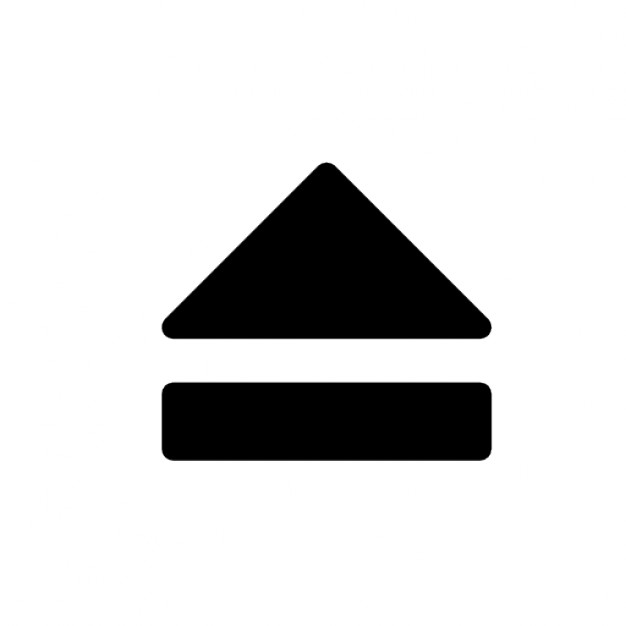 (Alt + Command + Media Eject) laat het scherm slapen
- ↑ Informatie afkomstig van Google AI
- ↑ Informatie afkomstig van macOS 26 Tahoe: How to Change Screensaver With Your Own Photos on MacBook!
- ↑ Informatie afkomstig van Apple
- ↑ Informatie afkomstig van 2022 - M1 Mac Mini Running Apple Displays
- ↑ Informatie afkomstig van Astropad